


MERIT
Guide: Researcher Profile
In addition to Universitat Ramon Llull’s public research portal, MERIT also allows research staff to manage their curriculum vitae.
This guide explains how to add all the information and records required to complete your curriculum vitae.
First steps
User accounts are created when at least one of the following conditions is met:
- Having a research project or research group associated with URL.
- Having scientific publications with IQS affiliation.
- Belonging to one of the following professional categories: PhD student, research assistant, research collaborator, researcher, assistant lecturer, assistant professor with a PhD, contracted professor with a PhD, associate professor, full professor, or emeritus professor.
Researcher profiles are managed by the Library. If you have any questions, contact us.
Identify yourself using your IQS credentials to access the platform.
You can access your researcher profile either through the direct link or via the public MERIT website, in the section Welcome! > Log in to MERIT.
Edit profile
On the home screen, below your profile picture, click Edit profile (Editar perfil). In the new window, within Edit > Metadata (Editar > Metadatos), you can access the page where you can add or modify your personal information.
- Name variants: indicate alternative forms of your name, including your standardised signature or other variants of your first name and surname.
- IDs: check that your Scopus Author ID and your Researcher ID (Web of Science) are correct.
- ORCID: verify that your ORCID is correct.
- Profile pictures: you can add an image using Category > Portrait (Categoría > Retrato). This image will be displayed on your public profile and in your CVN.
- Links: you can add your LinkedIn profile, your researcher webpage, etc.
If you detect any errors, please contact us so we can resolve them.
MERIT allows you to include three different summaries in your researcher profile. These summaries can be used to describe your academic and professional trajectory both in the public Research Portal profile and in your CVA and CVN:
- Research interests (Intereses principales de investigación): Summary included in the CVA (Part B. CV SUMMARY), in the CVN (Free curriculum summary), and in the public MERIT profile (Intereses principales de investigación).
- Relevant Teaching (Aportaciones más relevantes en docencia): Summary added to the FECYT CVN under Aportaciones más relevantes de su CV de docencia within the Teaching Activity section.
- General quality indicators of scientific production (Indicadores generales de la calidad de la producción científica): Narrative summary added to the FECYT CVN under Indicadores generales de calidad de la producción científica.
Steps to add summaries:
- On your researcher profile page, click Edit profile (Editar perfil), located below your photo.
- Scroll down to the Curriculum and research description (Descripción de investigación y currículum) section and click Add profile information… (Añadir información de perfil…).
- Select one of the three available Tipos: Intereses principales de investigación, Indicadores generales de la calidad de la producción científica, or Aportaciones más relevantes en docencia.
- Enter the text in the English, Catalan and Spanish fields.
- Click Create (Crear) and then Save (Guardar) to add the new content.
Current affiliations within Universitat Ramon Llull are specified according to the School, department, and research group to which you belong. If you detect any errors, please contact the Library.
MERIT allows you to add your previous professional experience in Cargos as well as your educational background in Educación y cualificación.
Steps to add your professional experience:
- On your researcher profile page, click Edit profile (Editar perfil), located below your photo.
- Scroll down to the Positions (Cargos) section and click Add position (Añadir cargo).
- Enter the position description in all three languages.
- Specify the organisation in External Organisation (Organización externa).
- Enter the start and end dates of the position.
- Click Create (Crear) and then Save (Guardar) to save the new entry.
Steps to add your educational background:
- On your researcher profile page, click Edit profile (Editar perfil), located below your photo.
- Scroll down to the Education/Qualification (Educación/cualificación) section and click Add Education/Qualification (Añadir educación/cualificación académica).
- In the Qualification (Cualificación) dropdown menu, indicate whether the qualification corresponds to a bachelor’s degree, master’s degree, doctorate, seminars and other courses, specialised healthcare training, or healthcare R&D training.
- Enter the title in all three languages and, in the case of a doctorate, the title of your doctoral thesis.
- Indicate the award date (fecha de concesión).
- Specify the university or academic institution under External Organisation (Organización externa).
- Enter the start and end dates of the qualification.
- Click Create (Crear) and then Save (Guardar) to save the new entry.
- On your researcher profile page, click Edit profile (Editar perfil) below your photo.
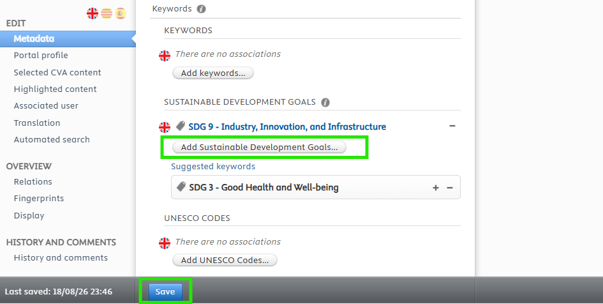
- In the new window, scroll down to the Keywords (Palabras clave) section.
- Add the Sustainable Development Goals in the Sustainable Development Goals (Objetivos de Desarrollo Sostenible) field using the Add Sustainable Development Goals… (Agregar objetivos de desarrollo sostenible…) option.
- Make sure to save your changes by clicking Save (Guardar).
Indicate your proficiency level in different languages so that it can be included in your Fecyt CVN:
- On your researcher profile page, click Edit profile (Editar perfil), located below your photo.
- Scroll down to the Keywords (Palabras clave) section and locate Common European Framework of reference for Language Skills (Marco común Europeo de referencia para las lenguas (CEFR)).
- Click Add (Agregar).
- From the drop-down menu, select the language you wish to add.
- Assign the corresponding level for each language skill: listening comprehension, reading comprehension, written expression, spoken expression, and spoken interaction.
- Click Save (Guardar).
Add publications
The Library staff are responsible for importing, reviewing, and validating records of scientific publications indexed in Web of Science and Scopus. For this reason, most publications should already be associated with your researcher profile.
The entry of non-indexed publications is the responsibility of the academic and research staff member.
To add publications, use the sections Import publications from Web of Science or Scopus, Import publications from a file and Add publications manually.
Validated records cannot be edited. Therefore, if you wish to claim or remove a publication that has been incorrectly associated with your profile, contact the Library.
Before importing any record, search for the publication using the search bar to ensure that it does not already exist in MERIT. If it already exists, contact the Library so that we can add you as an author.
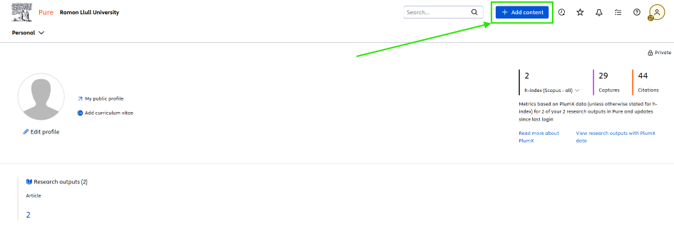
- Use the blue + Add content (+ Añadir contenido) button located at the top of the screen.
- Select Research Output (Resultado de investigación) > Import from online source (Importar desde una fuente en línea).
- Select Scopus or Web of Science.
- Search for the publication by title or DOI.
- Once the publication has been retrieved, click Import (Importar) and then Import and review (Importar y revisar).
- It is important to provide information in the following fields:
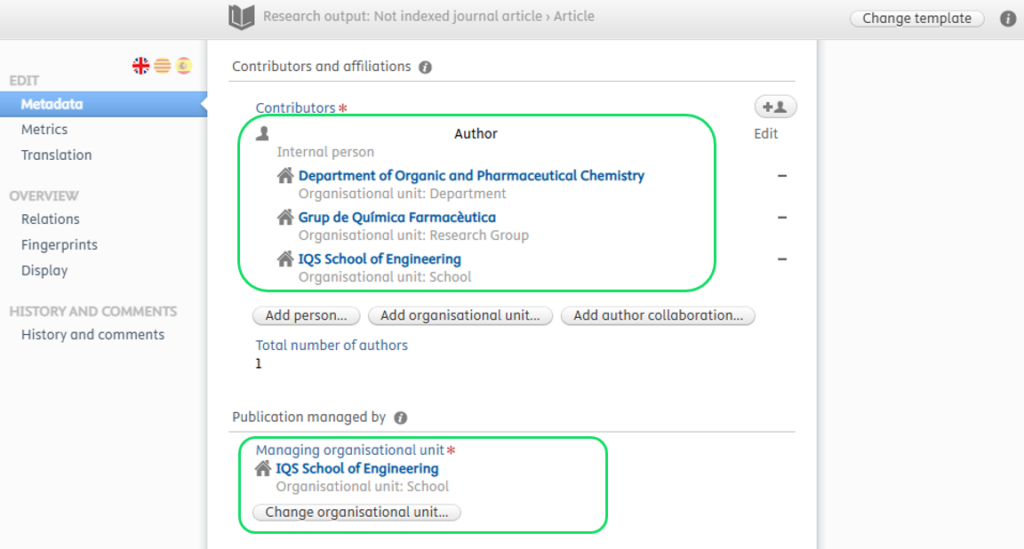
- Contributors and affiliations (Autores y afiliaciones): indicates the authorship of the publication. The three affiliation entities must be specified: Institution (School), Department and Research Group.
- Managing organisational unit (Unidad organizativa de gestion): indicate the School.
- Select the Visibility (Visibilidad) of the record: Public.
- Check that the field Status = For validation (Estado = Para validación) is correct and finally click Save (Guardar) to save the record.
The websites of journals and scientific databases allow publication metadata to be exported in .ris or .bibtex files. These files can be used to import metadata into MERIT.
Before importing any record, search for the publication using the search bar to ensure that it does not already exist in MERIT. If it already exists, contact the Library so that we can add you as an author.
- Use the blue + Add content (+ Añadir contenido) button located at the top of the screen.
- Select Research Output (Resultado de investigación) > Import from file (Importar desde un fichero).
- Select BibTeX or RIS according to your file format.
- Drag the file into the Upload file box and click Import (Importar).
- It is important to provide information in the following fields:
- Contributors and affiliations (Autores y afiliaciones): indicates the authorship of the publication. The three affiliation entities must be specified: Institution (School), Department and Research Group.
- Managing organisational unit (Unidad organizativa de gestion): indicate the School.
- Select the Visibility (Visibilidad) of the record: Public.
- Check that the field Status = For validation (Estado = Para validación) is correct and finally click Save (Guardar) to save the record.
Before creating any record, search for the publication using the search bar to ensure that it does not already exist in MERIT. If it already exists, contact the Library so that we can add you as an author.
- On the home screen, click + Add content (+ Añadir contenido).
- In the new window, select the appropriate type within Research output (Resultado de la investigación).
- Complete all fields marked with an asterisk * and any other fields for which you have information. It is particularly important to provide information in the following fields:
- Contributors and affiliations (Autores y afiliaciones): indicates the authorship of the work. The three affiliation entities must be specified: Institution (School), Department and Research Group.
- Managing organisational unit (Unidad organizativa de gestion): indicate the School.
- Identifiers: whenever available, a DOI, ISSN or ISBN should be entered.
- Select the Visibility (Visibilidad) of the record: Public.
- Check that the field Status = For validation (Estado = Para validación) is correct and finally click Save (Guardar) to save the record.
Specify roles and corresponding authorship
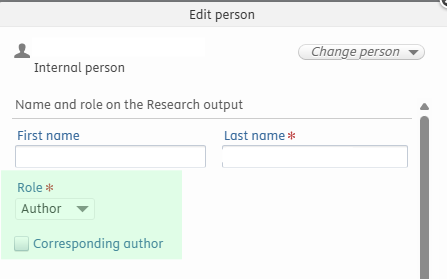
- Within the author record, below the name, you will find the Role drop-down menu, which allows you to distinguish between the following roles: author, illustrator, editor, translator, publisher or guest editor.
- If applicable, select the Corresponding author (Autor de correspondencia) checkbox to indicate the corresponding author.
Add external affiliations
- Within the author record, scroll down until you find the button Affiliate to an external organization.

- Search for the organisation and select it.
Add activities
Academic and research staff are responsible for entering their own research activities. The Library staff are responsible for reviewing and approving the submitted records.
Approved records cannot be edited. Therefore, if you wish to modify or remove an activity that has been incorrectly associated with your profile, contact the Library.
To enter activities, see the section Add activities manually.
Before creating any record, search for the activity using the search bar to ensure that it does not already exist in MERIT. If it does exist, contact the Library so that we can add you as an author.
- On the home screen, click + Add content (+ Añadir contenido).
- In the new window, select Activity > (Actividad >) and the type of activity you wish to create.
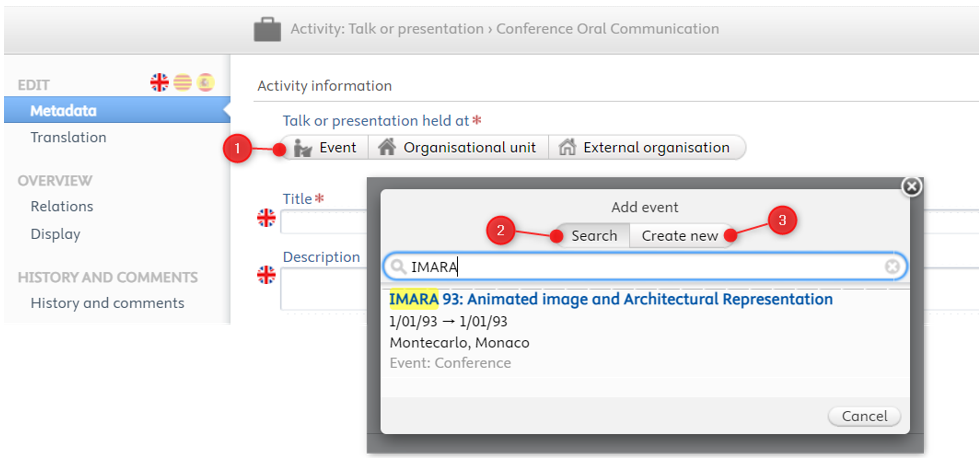
- Search for the event (conference) or the institution where the activity took place. If you cannot find it, click Create New (Crear nuevo) to create a new record. In the case of conferences, the dates, city and country where the event took place must be specified. Contact the Library if you find an incomplete or incorrect conference record.
- Describe the tasks carried out in the activity in the Description (Descripción) field.
- Enter the information required in the mandatory fields marked with an asterisk *.
- Select Visibility (Visibilidad) = Public.
- Check that the field Status = For approval (Estado = Para aprobación) is correct and click Save (Guardar) to save the record.
Add other content
Patent records are managed by Tech Transfer. If any patent is missing from your profile or if you have any comments or observations, contact Tech Transfer.
Courses and seminars delivered
- On the home screen, click + Add content (+ Añadir contenido).
- Select Course > Course types > Teacher training courses and seminars given (Curso > Tipos de curso > Cursos y seminarios impartidos de formación docente).
- In the Title (Título) field, enter the name of the course and the institution where it was delivered.
- In the Description (Descripción) field, describe the objectives of the course.
- Enter the course date in Start date (Fecha de inicio) and, if it lasted more than one day, also indicate the End date (Fecha de fin).
- Save the record by clicking Save (Guardar).
Courses and seminars attended
- On the home screen, click + Add content (+ Añadir contenido).
- Select Curso > Tipos de curso > Curso.
- In the Title (Título) field, enter the name of the course and the institution where it was attended.
- In the Description (Descripción) field, describe the objectives of the course.
- Enter the course date in Start date (Fecha de inicio) and, if it lasted more than one day, also indicate the End date (Fecha de fin).
- Save the record by clicking Save (Guardar).
- On the home screen, click + Add content (+ Añadir contenido).
- In the new window, select Prize > Prize format types > Acreditations (Premio > Tipos de formato de premios > Acreditaciones (AQU, ANECA, AEI)).
- In the Title (Título) field, indicate which accreditation has been awarded to you (Acreditación de Profesor Titular, Acreditación de Profesor Contratado Doctor, etc.).
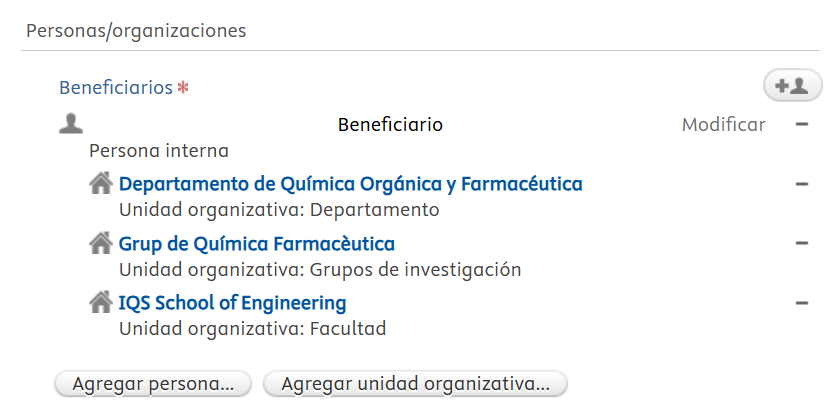
- Enter the Awarded date (Fecha de dotación) and add the quality assurance agency (AQU, ANECA, etc.) in the Granting Organisations (Organizaciones adjudicatarias) field. The accepted format for these agencies is shown below:


- As the beneficiary, indicate the School, department and research group with which you are affiliated.
- Save the record by clicking Save (Guardar).
The entry of six-year research evaluations, research assessment periods and research merits is managed by the Office for Research and Innovation (ORI) of Universitat Ramon Llull. If any record is missing from your profile or requires modification, contact ORI.
Bachelor’s and Master’s theses
The supervision of bachelor’s and master’s theses is managed by the Library. If any record is missing from your profile or requires modification, contact the Library.
Doctoral theses
The supervision of doctoral theses is managed by the Office for Research and Innovation (ORI) of Universitat Ramon Llull. If any record is missing from your profile or requires modification, contact ORI.